 Handwriting to Text
 Screenshot to Text
 PNG to Text
 PDF to Text
 JPG to Word
 JPG to Excel
 PNG to Excel
 PDF to Excel
 Excel to CSV
 CSV to Excel
 JPG to PDF
 PNG to PDF
 Word to PDF
 Word to JPG
 Bank Statement Converter
 Invoice Scanner
 Business Card Scanner
 ID Card Scanner
 Passport Scanner
How to Convert a Picture of a Document into an Editable Word File?
By OCR.ac Team · Published
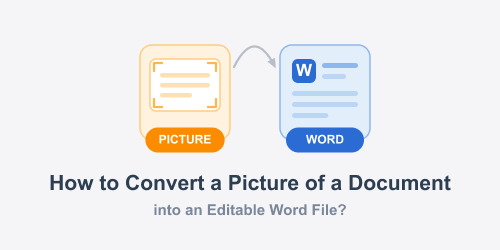
A picture of a document can be useful when you only need to read its contents. But what happens when you want to change a sentence, correct a spelling mistake, or copy a few paragraphs into another file? Things become a little difficult because the words in a picture cannot be edited like ordinary document text.
This situation is quite common. You might have photographed a printed letter, received a scanned agreement, or saved a textbook page as a JPG image. The information is visible, but there is no direct way to select and modify individual words.
Fortunately, you don't have to type everything again. OCR technology can recognize the text inside an image and turn it into editable content that you can use in Microsoft Word.
Let's look at how this process works, how you can do it yourself, and what to keep in mind when working with photographed documents.
Why Convert a Document Picture Into Word?
A picture and a Word document serve different purposes. An image preserves how a page looks, while a Word file allows you to work with its contents.
For instance, imagine receiving a photograph of a two-page business letter. You need to update the recipient's name and change a few sentences. Editing the picture itself would be inconvenient, and typing the entire letter again would waste time.
An editable Word version gives you more flexibility. You can change the wording, adjust the formatting, add information, remove unnecessary sections, and save an updated copy.
The same applies to printed notes, reports, applications, forms, and other documents. Having the text in an editable format makes everyday document work much easier.
How Does OCR Turn a Picture Into Editable Text?
The technology responsible for this process is called Optical Character Recognition, or OCR.
It examines an image, identifies areas containing text, and attempts to recognize the letters, numbers, and symbols. Once recognized, the content can be converted into digital text.
For example, if you upload a JPG photograph containing a printed paragraph, the OCR system analyzes the characters and produces text that can be edited in a supported document format.
Modern OCR technology can recognize different fonts, languages, and document layouts. However, the results depend on the quality of the original picture.
Clear printed text usually produces better results than blurry photographs or difficult handwriting.
How to Convert a Picture Into an Editable Word File?
You don't need advanced computer skills to get started. An online tool can handle the recognition process without requiring you to install complicated software.
Here is a simple method to follow.
Step 1: Prepare Your Document Picture
First, locate the image you want to convert. It could be a JPG photograph, a scanned page, or a picture saved from your phone.
Open the file and check whether the words are readable. If the image is blurry, dark, or tilted, try taking another photograph before uploading it.
Step 2: Open an Online Conversion Tool
Visit OCRac and open its JPG to Word Converter right there. You can use the online tool through your browser without setting up a separate desktop application.
Choose the image you want to process from your device.
Step 3: Upload Your Image
Select the JPG file and upload it using the available upload option.
Make sure you have selected the correct document, particularly if you have several similar photographs saved on your device.
Step 4: Start the Conversion
After uploading the picture, follow the instructions displayed by the tool to begin processing.
The OCR system will examine the image and recognize the text it contains. Depending on the document's length and quality, processing may take some time.
Step 5: Download and Review the Word File
Once the conversion is complete, download the resulting Word document if the tool provides that output.
Open it in Microsoft Word or a compatible application. Read through the content and correct any recognition mistakes.
You can now edit the text, change headings, adjust paragraphs, or use the information in another document.
What Types of Pictures Can You Convert Into Word Documents?
Not every image contains the same kind of information. Some have a few lines of text, while others contain several paragraphs or complete pages.
Here are some common examples where image-to-Word conversion can be useful.
1. Photographs of Printed Documents
You might have taken a picture of a printed letter, notice, agreement, or report. Instead of typing its contents again, you can use OCR to create an editable version.
2. Scanned Book Pages
Students and researchers often work with printed books and reference materials. Converting photographed pages into text makes it easier to collect useful information, prepare notes, and create study materials.
Remember to respect copyright restrictions when reproducing published content.
3. Printed Letters and Applications
Sometimes you need to reuse an old application or business letter but no longer have its original Word file. If you have a photograph or scanned copy, OCR can help recover the wording.
4. Classroom Notes and Handouts
Teachers may receive printed worksheets, instructions, or learning materials that need updating. An editable copy makes it easier to revise questions, change explanations, and prepare new versions.
5. Business Documents
Businesses regularly deal with printed notices, reports, proposals, and other paperwork. Turning these documents into editable text can reduce the effort required to reuse information.
Tips to Get Better Conversion Results
The quality of your final Word document depends partly on the image you upload. A few simple checks can prevent unnecessary corrections later.
Use a clear photograph: Make sure the letters are sharp and readable. Avoid images where the text looks stretched or pixelated.
Choose proper lighting: Shadows can cover important words, while excessive brightness may make some characters difficult to recognize. Try to photograph the page in evenly lit surroundings.
Keep the page straight: Avoid taking pictures from extreme angles. Position your camera directly above the document so the lines remain properly aligned.
Include the complete page: Check that the image contains all the paragraphs, headings, and page sections you need. Cropped content cannot be recovered through ordinary OCR.
Avoid unnecessary background details: Keep other objects away from the document. A clean image helps the recognition system focus on the actual content.
Review the final document: OCR can occasionally confuse similar-looking characters or miss punctuation. Always check important names, dates, numbers, and sentences.
What Happens to Formatting During Conversion?
One thing beginners should understand is that recognizing text and reproducing the original page layout are two different tasks.
An OCR tool may identify every word correctly but still produce a document that looks slightly different from the original picture.
For example, the original page might contain bold headings, numbered lists, columns, tables, or special spacing. Some of these elements may need manual adjustments after conversion.
Simple documents with ordinary paragraphs are generally easier to process than pages containing complicated layouts.
If you need the document for professional use, spend a few minutes adjusting the font, paragraph spacing, headings, and alignment in Word.
Also, remember that an editable document does not automatically become an exact visual copy of the photographed page.
Common Problems and How to Fix Them
Even with a good conversion tool, you may occasionally notice problems in the resulting document.
Here are a few situations worth knowing about.
Missing words: This can happen when the image has poor resolution or some text is covered by shadows. Try uploading a clearer photograph.
Incorrect characters: OCR may confuse characters that look similar, such as the letter I and the number 1. Review the affected sentences and correct them manually.
Broken paragraphs: Sometimes the original line spacing or page layout causes unexpected breaks. You can join the affected lines in Word.
Difficult handwriting: Handwritten content is generally harder to recognize than printed text. Results depend heavily on how clearly the words are written.
Unusual fonts: Decorative lettering and very small text may not be recognized correctly. If possible, use a clearer image or a document with more readable printing.
Knowing these limitations helps you understand why checking the final file is an important part of the process.
Closing Now
Having a picture of a document doesn't mean you have to settle for a file that cannot be edited. With OCR technology, you can turn printed information into digital text and use it in Microsoft Word.
Whether you're working with photographed letters, book pages, classroom materials, or business paperwork, this approach can save you from unnecessary typing.
If you regularly work with document pictures, try the jpg to word converter available on OCR.ac. Upload your image, follow the conversion steps, and review the resulting document.
A clear photograph and a quick final check can make the whole process much easier. Instead of recreating an entire document, you'll have editable text ready for your next task.